> ## Documentation Index
> Fetch the complete documentation index at: https://quill.co/docs/llms.txt
> Use this file to discover all available pages before exploring further.
# Quickstart
> Get up and running with Quill in less than a minute
### 1. Create a read-only user
To create a read-only user in PostgreSQL, do the following:
```SQL PostgreSQL theme={null}
-- Replace 'password' with a strong password.
CREATE USER quill_read_only WITH PASSWORD 'password';
```
```SQL PostgreSQL theme={null}
-- Allows the user to connect to the database.
GRANT CONNECT ON DATABASE your_database TO quill_read_only;
```
```SQL PostgreSQL theme={null}
-- Allows the user to access the objects within the schema.
GRANT USAGE ON SCHEMA your_schema TO quill_read_only;
```
```SQL PostgreSQL theme={null}
-- Allows the user to read data from the tables.
GRANT SELECT ON ALL TABLES IN SCHEMA your_schema TO quill_read_only;
```
The connection string for the read-only user we just created will be something like: `postgresql://quill_read_only:password@db.example.com:5432/your_database`.
 To create a read-only user in Big Query, do the following:
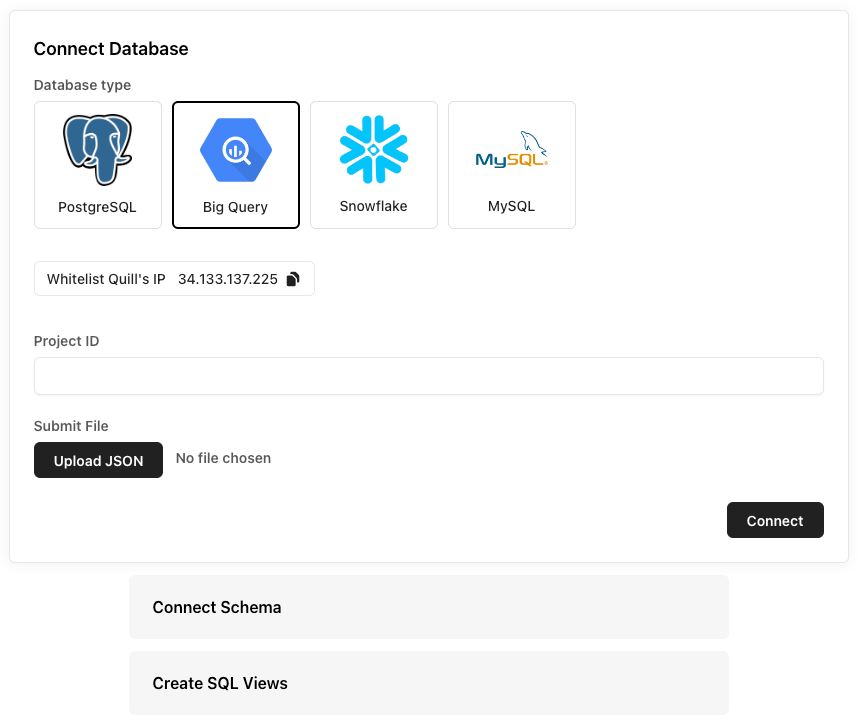
In the Google Cloud Console, navigate to the IAM & Admin > Service Accounts page. Click `Create Service Account` and follow the prompts to create a new service account.
Grant the `bigquery.dataViewer` role to the service account for a dataset. You can do this by navigating to the dataset’s Permissions page and adding the service account with the `bigquery.dataViewer` role.
Create a new JSON key for the service account by clicking the `Actions` dropdown next to the service account on the IAM & Admin > Service Accounts page, and then selecting `Create Key`. Select `JSON` as the key type and click `Create`. This will prompt you to save it one your local machine.
In the next step you’ll upload this JSON file into the Quill BI Platform.
To create a read-only user in Big Query, do the following:
In the Google Cloud Console, navigate to the IAM & Admin > Service Accounts page. Click `Create Service Account` and follow the prompts to create a new service account.
Grant the `bigquery.dataViewer` role to the service account for a dataset. You can do this by navigating to the dataset’s Permissions page and adding the service account with the `bigquery.dataViewer` role.
Create a new JSON key for the service account by clicking the `Actions` dropdown next to the service account on the IAM & Admin > Service Accounts page, and then selecting `Create Key`. Select `JSON` as the key type and click `Create`. This will prompt you to save it one your local machine.
In the next step you’ll upload this JSON file into the Quill BI Platform.
 To create a read-only user in Snowflake, do the following:
```SQL Snowflake SQL theme={null}
-- Replace 'password' with a strong password.
CREATE USER quill_read_only PASSWORD 'password';
```
```SQL Snowflake SQL theme={null}
-- Creates a role specifically for read-only access.
CREATE ROLE quill_read_only_role;
```
```SQL Snowflake SQL theme={null}
-- Allows the role to read data from the tables.
GRANT SELECT ON ALL TABLES IN SCHEMA my_schema TO quill_read_only_role;
```
```SQL Snowflake SQL theme={null}
-- Gives user the permissions of the role
GRANT quill_read_only_role TO quill_read_only;
```
To create a read-only user in Snowflake, do the following:
```SQL Snowflake SQL theme={null}
-- Replace 'password' with a strong password.
CREATE USER quill_read_only PASSWORD 'password';
```
```SQL Snowflake SQL theme={null}
-- Creates a role specifically for read-only access.
CREATE ROLE quill_read_only_role;
```
```SQL Snowflake SQL theme={null}
-- Allows the role to read data from the tables.
GRANT SELECT ON ALL TABLES IN SCHEMA my_schema TO quill_read_only_role;
```
```SQL Snowflake SQL theme={null}
-- Gives user the permissions of the role
GRANT quill_read_only_role TO quill_read_only;
```
 To create a read-only user in MySQL, do the following:
```SQL MySQL theme={null}
-- Replace 'password' with a strong password.
CREATE USER 'quill_read_only'@'%' IDENTIFIED BY 'password';
```
```SQL MySQL theme={null}
-- Allows the user to read data from the tables.
GRANT SELECT ON your_database.* TO 'quill_read_only'@'%';
```
The connection string for the read-only user we just created will be something like: `mysql://quill_read_only:password@db.example.com:3306/your_database`.
To create a read-only user in MySQL, do the following:
```SQL MySQL theme={null}
-- Replace 'password' with a strong password.
CREATE USER 'quill_read_only'@'%' IDENTIFIED BY 'password';
```
```SQL MySQL theme={null}
-- Allows the user to read data from the tables.
GRANT SELECT ON your_database.* TO 'quill_read_only'@'%';
```
The connection string for the read-only user we just created will be something like: `mysql://quill_read_only:password@db.example.com:3306/your_database`.
 ### 2. Connect your database
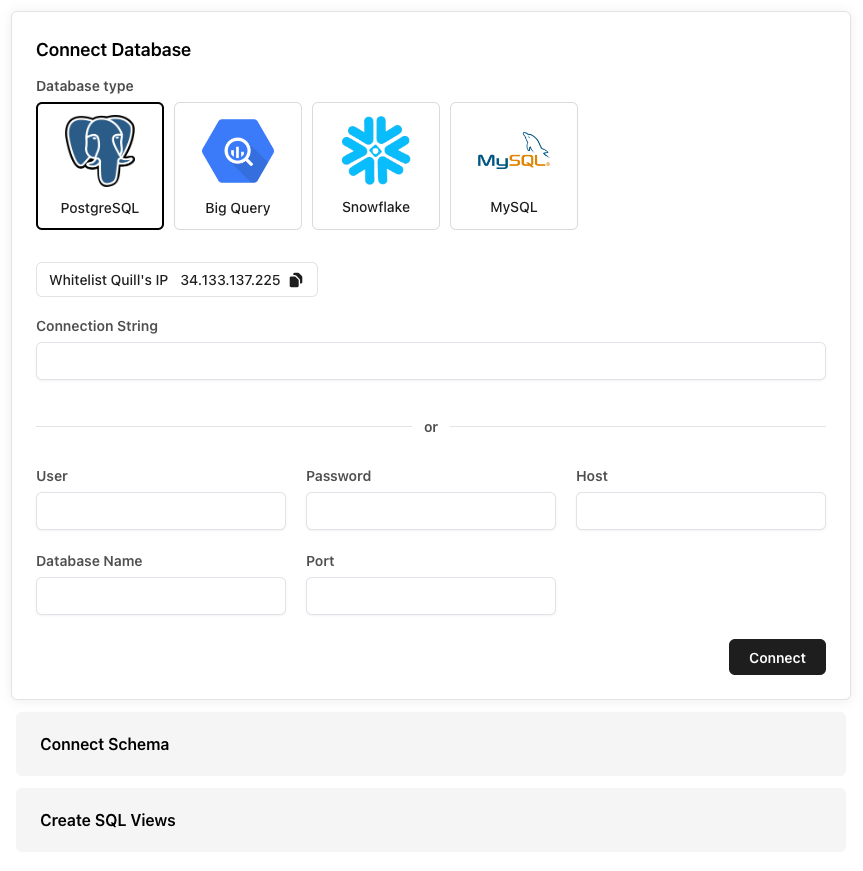
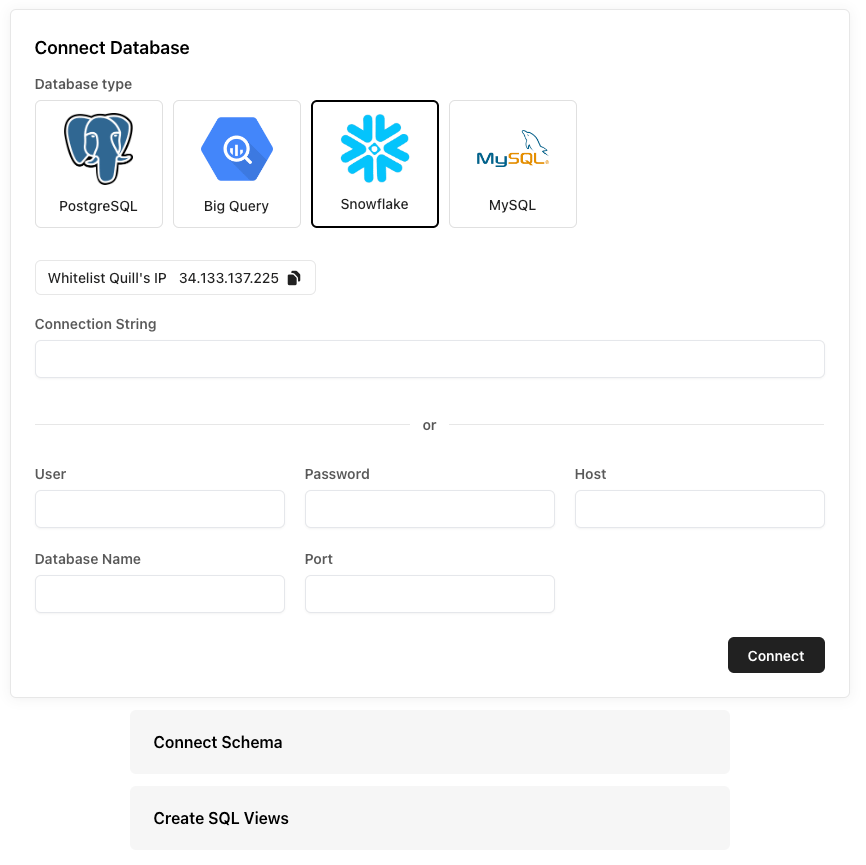
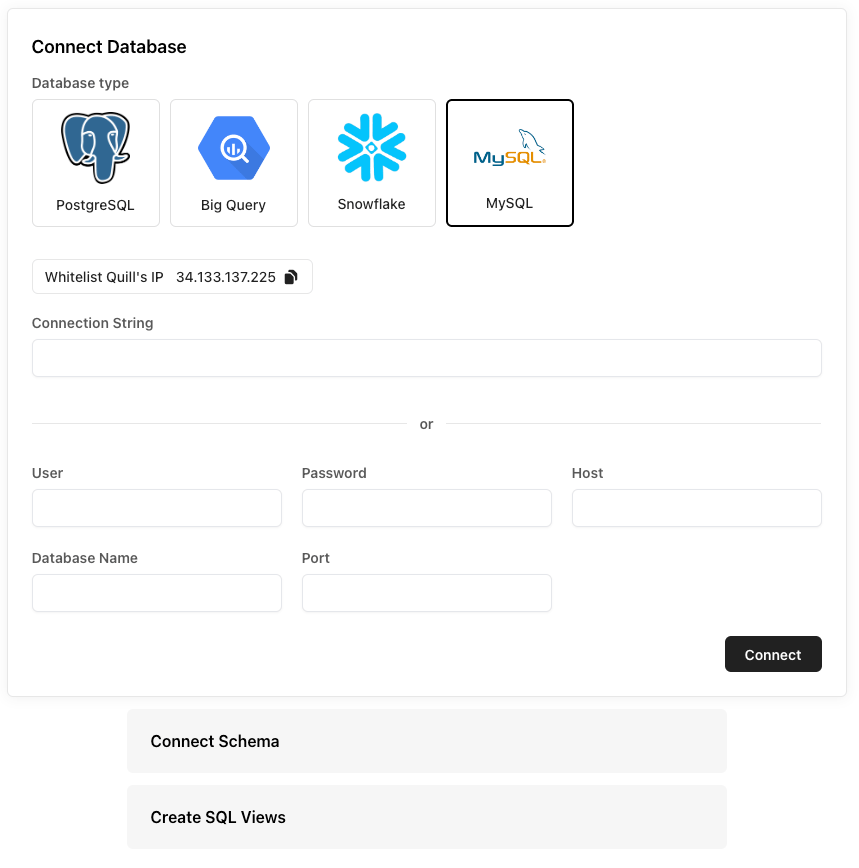
Go to [https://app.quill.co/onboard](https://app.quill.co/onboard) and enter the read-only database connection string that we created in the last step.
If you're using our fully-managed Quill instance, make sure to add the Quill
server to your database IP whitelist, if you have one. Requests from Quill
will always come from `34.133.137.225`, `209.71.81.30/32`, or `209.71.101.146`
For more information about data and access control, you can read our
self-hosting guide [here](/bi-platform/self-host).
### 3. Connect your schema
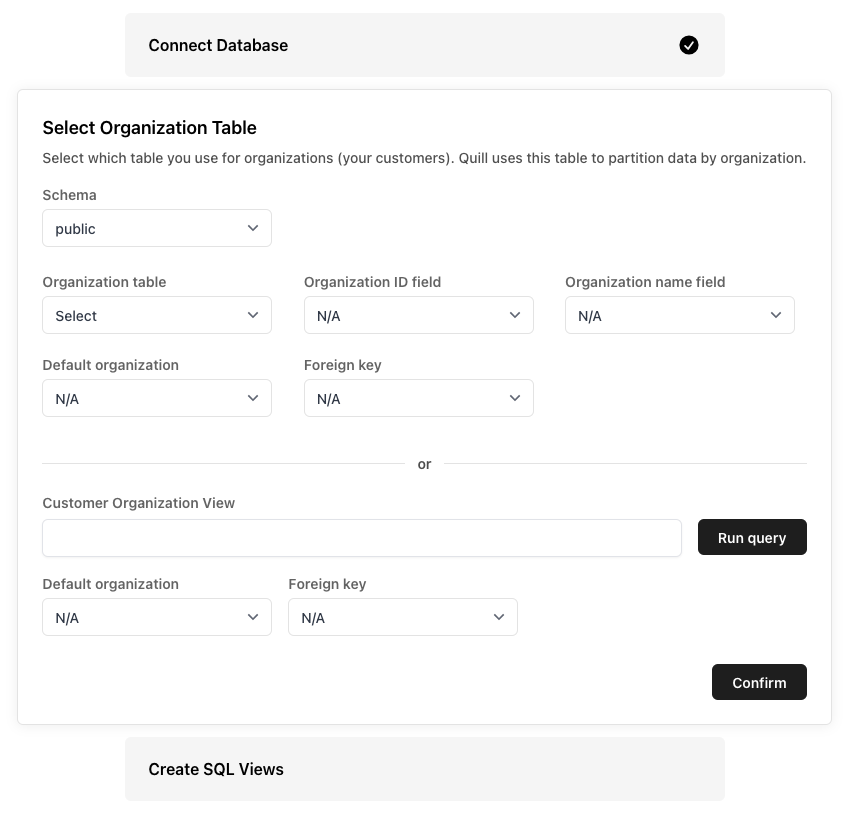
The Quill platform provides powerful filtering and reporting tools to help you get the insights you want, faster. Since Quill provides organization-based filtering out-of-the-box, simply let us know which table to use and Quill will automatically partition your data by organization.
### 2. Connect your database
Go to [https://app.quill.co/onboard](https://app.quill.co/onboard) and enter the read-only database connection string that we created in the last step.
If you're using our fully-managed Quill instance, make sure to add the Quill
server to your database IP whitelist, if you have one. Requests from Quill
will always come from `34.133.137.225`, `209.71.81.30/32`, or `209.71.101.146`
For more information about data and access control, you can read our
self-hosting guide [here](/bi-platform/self-host).
### 3. Connect your schema
The Quill platform provides powerful filtering and reporting tools to help you get the insights you want, faster. Since Quill provides organization-based filtering out-of-the-box, simply let us know which table to use and Quill will automatically partition your data by organization.
 ### 4. Add SQL Views
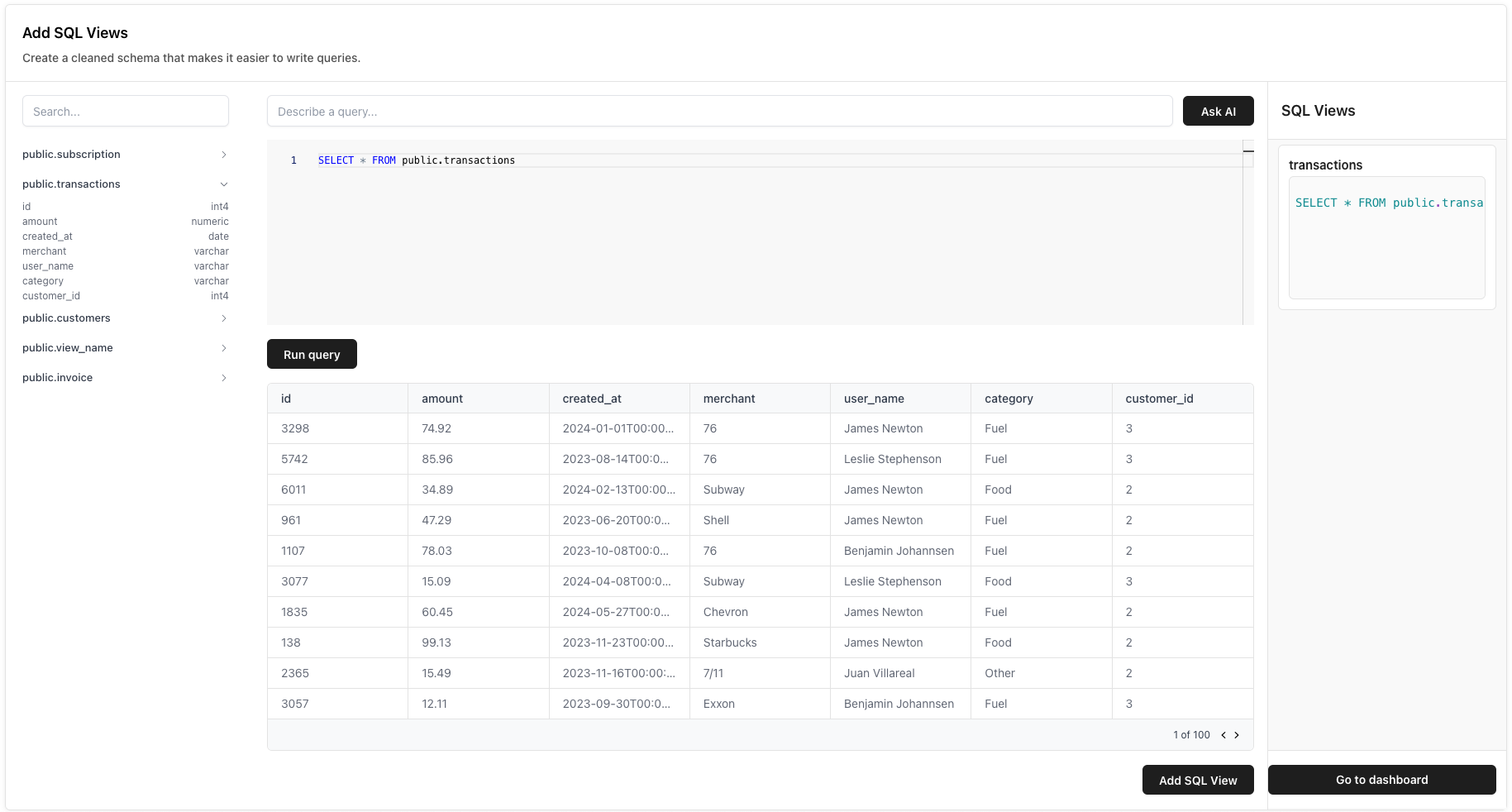
Create a cleaned schema that makes it easier to write queries and reports. The views you create here will be used to create charts and tables later on. Don't worry, you can always create and edit these views later.
### 4. Add SQL Views
Create a cleaned schema that makes it easier to write queries and reports. The views you create here will be used to create charts and tables later on. Don't worry, you can always create and edit these views later.
 ### Next Steps
Once you have connected your database, you're ready to create your first dashboard! Check out our guides on how to create your first dashboard below.
Build your first dashboard with Quill in less than a minute.
### Next Steps
Once you have connected your database, you're ready to create your first dashboard! Check out our guides on how to create your first dashboard below.
Build your first dashboard with Quill in less than a minute.